
CMD-X Roblox Admin Script Pastebin 2026
CMD-X is one of those Roblox admin command scripts which has stayed around for years because of its simplicity and command-based approach. Even in 2026, people still search for it because it is lightweight and does not try to do too much at once. It is infact very similar to Infinite yield script which has similar features but more quicker updates and a larger community.
What is CMD-X Admin Script?
CMD-X is a command based admin script made for Roblox experiences where client sided scripts are allowed. It works through a script executor and loads a list of usable commands into the game session. These commands let users perform actions like flying, teleporting, adjusting speed, or interacting with other players in limited ways depending on game compatibility.
The script became popular because it focused on usability. You type commands and get instant results. No heavy UI, no complicated setup, and no large memory usage. Compared to bigger admin frameworks, CMD-X feels more direct and easier for casual users.
CMD-X Admin Script Pastebin
CMD-X is usually shared through Pastebin loadstrings. These Pastebin links contain the latest script code that can be pasted into an executor and run instantly. The advantage is convenience. Users do not need to download anything or manage files.
You can click on the button below to access the direct Pastebin link of CMD-X.
You can also copy the script from below:
loadstring(game:HttpGet("https://raw.githubusercontent.com/CMD-X/CMD-X/master/Source",true))()
How to run CMD-X Script in Roblox?
Running CMD-X requires a working executor. Delta executor is one of the commonly used tools because it is simple to install and supports most loadstring scripts. Lets’ learn step by step how to run CMD-X using Delta Executor:
Step 1: Install Delta Executor
To run CMD-X script in Roblox, first Install Delta Executor, We won’t discuss about it in detail as we already have a installation guide. Access it from below:
Step 2: Load Delta Executor
After installation, Click on the game you want to play. You can see the delta executor icon on the top after the game is loaded. Click on the icon to open Delta Executor settings.
Step 3: Retrieve Access Key
Delta Executor requires an access key to run, You can either pay for it or get it by completing 4 offers. Don’t worry the offers are usually 2-3 mins long. I usually take no longer than 2 mins as they are very easy.
Once you complete those offers, you will get a free key which is valid for 24 hours. You can check the screenshots below to understand the drill.
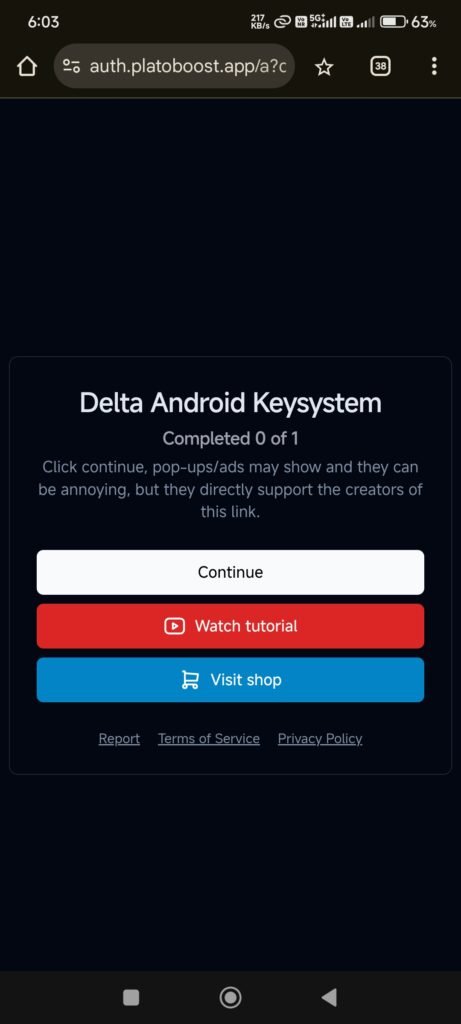
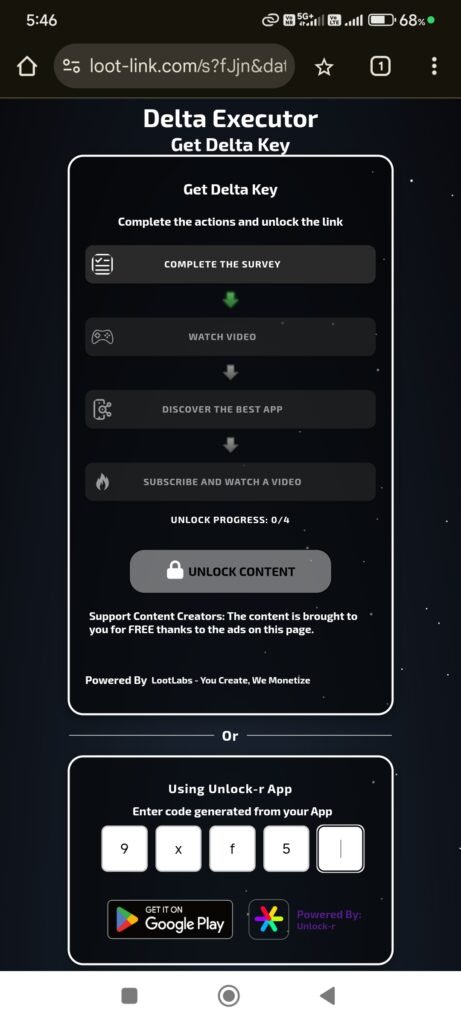
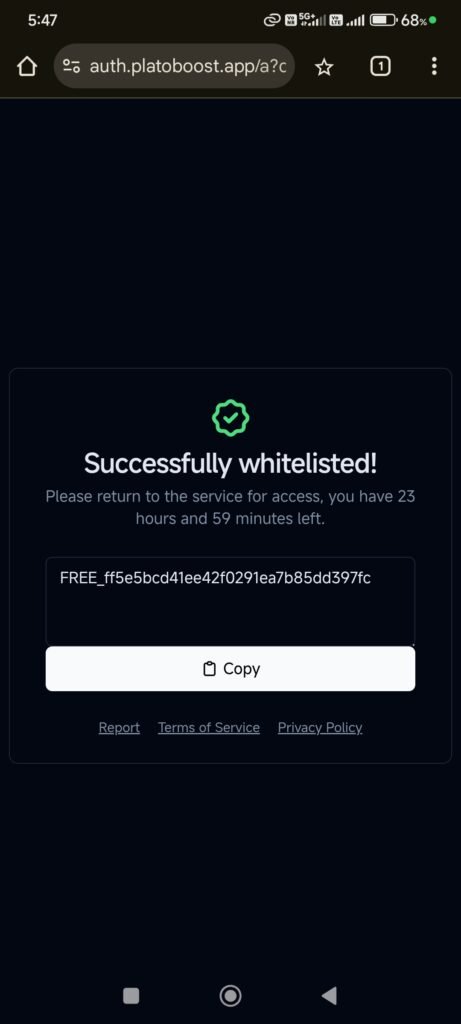
Copy & Insert the free key in Delta Executor and follow us to the next step.
Step 4: Paste the CMD-X loadstring link in Delta Executor and Click on Execute.
This step is self-explanatory. Once you insert the key, you will see a right sidebar. Click on the second icon (Gaming Console-type) and paste your loadstring which you copied above.
After pasting it, click on Execute and it will start running the CMD-X Admin script.
Bonus Step
If you don’t want to copy paste each time you run a game, You can follow these steps to save your admin script in Delta Executor.
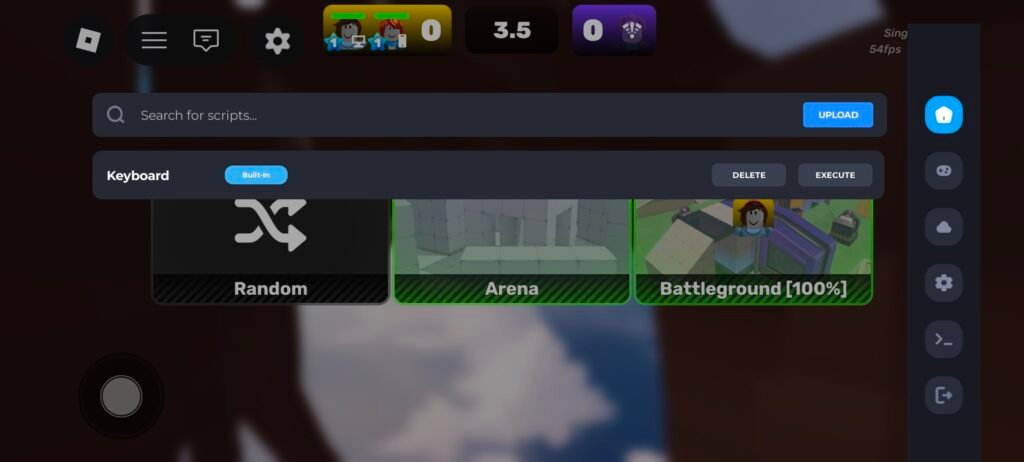
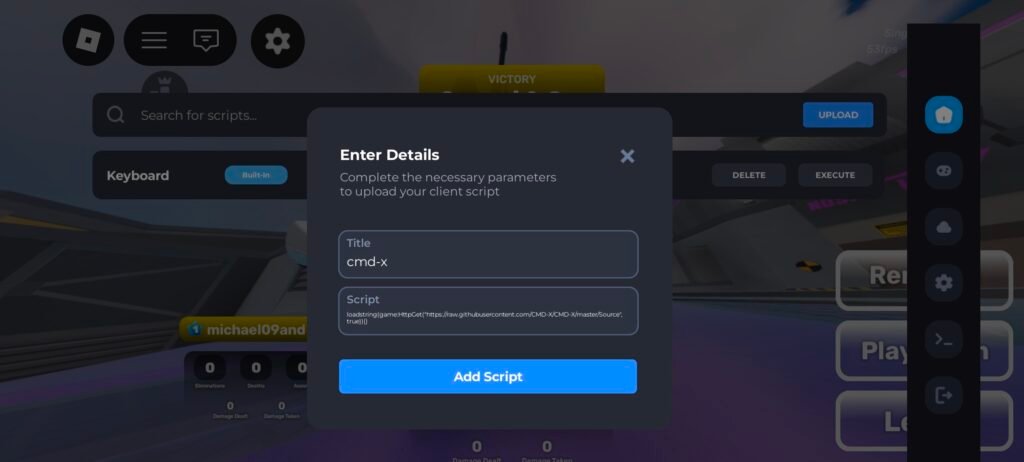
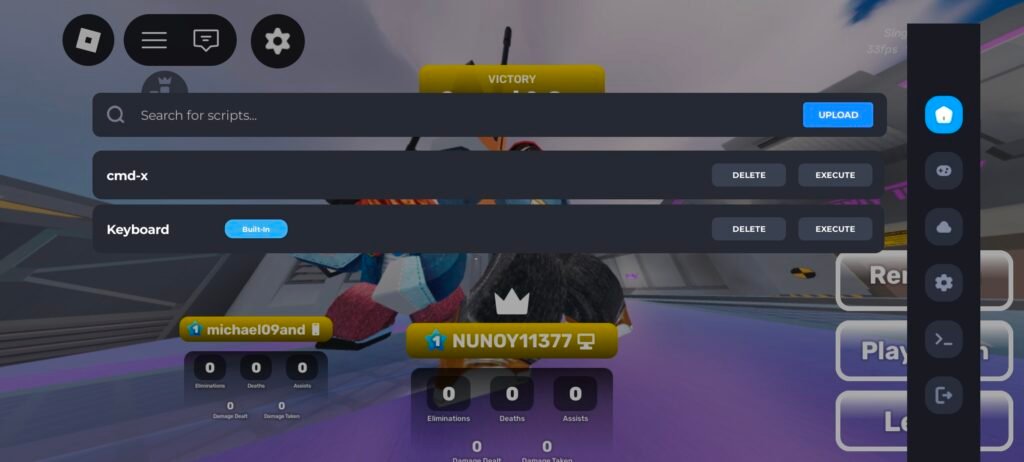
Follow the screenshots for easy insertion.
Click on the home icon, Click on upload. Now, enter the loadstring in script and add a name you like and click on Add script. Now just click on execute besides the script everytime you want to play using CMD-X Command Script.
After execution, the command system loads. Commands are usually typed in chat or the executor console depending on the script build.
CMD-X Roblox Script Features
CMD-X focuses on practical commands that affect player movement and interaction. It is not overloaded with visual elements, which keeps it fast.
- Movement commands like fly, noclip, and speed control
- Teleport tools for map navigation
- Follow and spectate commands
- Basic player interaction commands
- Simple command syntax that is easy to remember
- Lightweight loadstring so it runs even on low end systems
- Compatible with many FE supported games
Because it stays minimal, CMD-X loads faster than many modern scripts that include UI panels and animation libraries.
Pros & Cons
| Pros | Cons |
|---|---|
| Very easy to use even for first time script users | Not updated regularly |
| Quick execution and low system load | Some commands stop working after Roblox patches |
| Works across many games with command support | No central developer support |
| Large number of basic admin style commands | Reliability depends on executor stability |
| Does not require installation beyond an executor | Certain games block command functionality |
Which executors support CMD-X Script?
CMD-X is a loadstring based script, so most Roblox executors can run it. Tools like Delta, KRNL, Fluxus, Hydrogen, and other similar executors generally support it without major configuration.
Support depends on three things. Injection success, Roblox version compatibility, and script execution stability. Some executors may run CMD-X smoothly but fail in specific games. Others may execute it but commands might lag or not register properly.
PC executors tend to handle CMD-X better than mobile ones because of performance and memory availability. Mobile support exists, but heavy games and weaker devices can reduce responsiveness. Keeping the executor updated improves the chances of the script working correctly.
Conclusion
CMD-X remains a classic admin command script that still finds use in 2026 because of its simplicity and fast execution. It does not try to replace full admin systems. Instead, it gives quick access to movement and interaction commands in supported Roblox experiences.
Its biggest strength is ease of use. Its biggest weakness is the lack of consistent updates and official maintenance. For basic admin style control without heavy scripts, CMD-X continues to be a practical option.